
In this article, you will learn:
- What is the Pre-Reading Setting
- How to configure Pre-Reading Settings
- How participants use Pre-Reading Settings
- How to configure default Pre-Reading Settings
- Who can use Pre-Reading Settings
What is the Pre-Reading Setting?
Preparation is key to effective meetings. The Pre-Reading Setting helps organisers indicate which meeting materials require advance reading, which will be presented during the meeting, and which are optional.
Meeting materials include both documents and external links. This helps participants focus their preparation time on the most important content before the meeting.
How to configure Pre-Reading Settings?
For each document or external link added to an agenda item, you can choose one of the following Pre-Reading Settings:
- Requires pre-reading
- Presented in meeting
- Optional reading
To configure a Pre-Reading Setting:
- Open the meeting in Edit mode.
- Select a document or external link added to an agenda item.
- Use the Pre-Reading Setting indicator to select the appropriate preparation expectation.

- Save your changes.
Tip
For meetings with many agenda materials, you can select multiple documents and external links and apply the same Pre-Reading Setting to them in bulk.
How do participants use Pre-Reading Settings?
Participants can easily identify which meeting materials require preparation. A yellow tag indicates materials that require pre-reading, while a grey tag indicates materials that will be presented during the meeting or are optional.
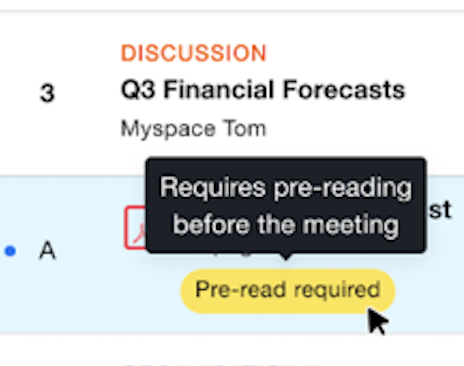
Participants can track their preparation progress using the Read/Unread status for documents and external links.
Depending on their personal settings, meeting materials are either:
- Automatically marked as Read when opened.
- Manually marked as Read or Unread using the available action.
Note
The Meeting Preparedness Level considers all documents and external links marked as Requires pre-reading.
Participants are considered fully prepared only when all required meeting materials have been marked as Read.
How to configure default Pre-Reading Settings?
Organisers can configure a default Pre-Reading Setting for newly added meeting materials.
- Go to Settings → Meeting Settings → Materials pre-reading requirement
- Select the default Pre-Reading Setting for new meeting materials.
The selected default applies to newly added meeting materials across all meetings, regardless of the room.
Who can use Pre-Reading Settings?
Pre-Reading Settings are available to all customers. Organisers can define preparation expectations for documents and external links, while participants can identify required materials and track their preparation progress using the Read/Unread status.