
In this article you will learn :
- What the is the Locking a meeting feature
- Who can lock or unlock a meeting
- What becomes locked and what remains editable
- How to lock or unlock a meeting in Edit and View mode
- What about the Topic Hub
What is the Locking a meeting feature?
Locking a meeting allows organisers to freeze the meeting content (Details, Agenda and Minutes) so that no further changes can be made. This prevents accidental edits and helps ensure compliance, especially for regulated industries. A meeting can be locked once the agenda is published. Minutes can be in any status. Locking helps to:
- Keep agenda and minutes unchanged after publication
- Prevent accidental modifications by organisers with Edit rights
- Provide a stable, final version for audits, approvals or signatures
Information
This feature is only available with the bundle Extension for Regulated Industries
Who can lock or unlock a meeting?
Anyone with edit permissions to the meeting can:
- Lock a meeting
- Unlock a meeting (providing a reason is required)
What becomes locked and what remains editable?
When a meeting is locked, the following can no longer be edited:
- Title, date, time, location
- Participants and meeting leader
- Feedback Form
- Document security and classification
- Deleting the meeting
- Any agenda edits
- Publishing / share as draft / in approval
- Adding, renaming, moving documents
- Scheduling items from Topic Hub
- Managing access on items or documents
- Any edits to minutes
- Publishing / share as draft / in approval
- Adding, editing or deleting Tasks or Decisions
- Approving minutes
- Voting or changing votes
Even when the meeting is locked, the following actions remain possible:
- Adding Guests, non-participants or Minutes Viewers
- Adding and editing annotations on documents
- Adding and editing personal meeting notes
- Providing feedback via the Feedback form
- Adding, editing, resolving or deleting comments
- Updating the status of Tasks or Decisions (including adding remarks)
- Requesting or stopping signatures
- Signing the Minutes PDF
- Using global actions that do not change content (download, copy link, send email, clone, meeting history, create template)
This applies to all meetings, past or future.
How to lock or unlock a meeting?
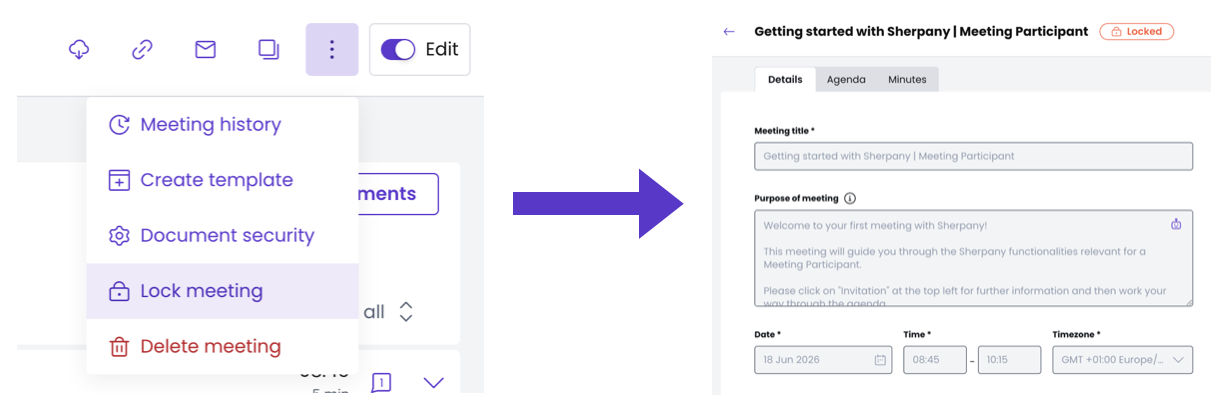
Locked meetings are indicated in the organiser’s meeting list.
- Open the meeting and ensure the agenda is published.
- Click the 3-dot menu in the top right corner.
- Select Lock meeting.
- Confirm. The meeting becomes read-only.
- Open the 3-dot menu.
- Select Unlock meeting.
- Enter a reason in the text field.
- The meeting is unlocked and the action is logged in the Meeting History.
Information
Participants see a  label inside the meeting. Only actions that do not change the official content remain available, such as:
- Annotations
- Personal meeting notes
- Feedback form
- Comments
- Signing minutes
- Updating Task or Decision status (including remarks)
What about the interactions with the Topic Hub?
Agenda items that were scheduled from Topic Hub can't be changed once the meeting is locked. This ensures alignment between Topic Hub, the agenda and the minutes, and prevents accidental changes to prepared and scheduled content.