
In this article, you will learn:
- How to import documents from SharePoint or OneDrive to the meeting agenda,
- How the authentication with Microsoft works,
- What are the limitations.
How to import documents from SharePoint or OneDrive to the meeting agenda?
In Edit Mode, on the Agenda Tab, you can import documents directly from SharePoint or OneDrive in two ways:
- Click "Add document" directly on an agenda item,
- Click "Add documents" in the side panel.
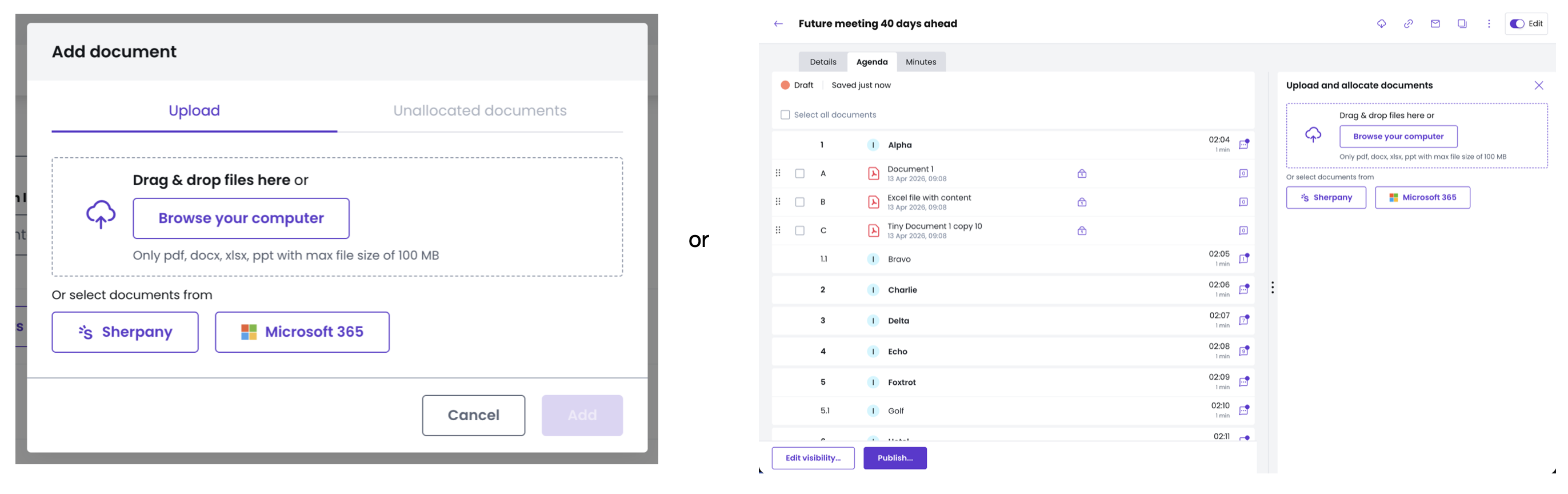
Both options will let you select "Import from SharePoint" to access your Microsoft 365 files.
How does the authentication with Microsoft work?
If you are not yet logged into your Microsoft account, a new browser window will open prompting you to sign in. Once authenticated, the window will close and you are back in Sherpany.
Once connected, you will be able to:
- Select from the SharePoint sites you have access to,
- Navigate through the folder structure using the breadcrumbs at the top,
- Search for a specific document within the selected site,
- Select one, multiple, or all documents in a folder to import.
The selected documents are automatically converted into PDFs by Microsoft and added to the meeting agenda.
What are the limitations?
- Supported formats: PDF, DOCX, XLSX, PPT.
- Maximum file size: 100 MB per document.
Security
- The integration uses OAuth 2.0, an industry-standard authentication protocol. Sherpany only requests the minimum permissions necessary to read the SharePoint sites and files the organiser has access to - no passwords are shared.
- In most cases, your organisation's IT Admin will need to grant consent for the integration within your Microsoft tenant before organisers can use it.
- The following API permissions are required for the integration: email, offline_access, Files.Read.All, openid, profile, Sites.Read.All, User.Read, AllSites.Read, MyFiles.Read