
In this article, you will learn:
- How to add documents to the meeting agenda:
- Upload and allocate the documents with the bulk option,
- Upload single documents in the agenda items,
How to delete a document from an agenda item,
The limitations for the documents.
How to add documents to the meeting agenda?
Upload and allocate documents with the bulk option

You can upload multiple documents through the side panel interface in one go and distribute documents with ease by selecting them from a dropdown menu. Especially if there are numerous documents that need to be uploaded, this is the easiest way to add your meeting documents to the agenda.
Click on "Add document" on the top right of your Agenda section, and add all documents at once. Here you can add documents by:
- Drag and drop the documents,
- Browse documents from your device,
- Select files already in Sherpany.
This last option lets you upload documents into a meeting that already exist in either another meeting or in the library, even if they are in a different room. With this option, you don't need to keep a folder on your computer with those documents to reuse them in the next meeting, increasing security and confidentiality. Two options are available:
- Past and future meetings - The first list provides meetings you can access and where you can look for documents that were used there. By clicking on a meeting, a list of documents from that meeting is provided. You also have the possibility to search by text in meeting and document titles.
- Library - In the second tab, you can browse the corporate library and find documents you have access to and want to reuse.
Information
- The annotations made by the attendees on a document are also reused (still in private) in the next meeting if you follow this procedure, avoiding the need for the attendee to prepare again the same document.
- You can add PDFs and Microsoft Office documents. MS Office documents will be converted to PDF so they can be marked and commented on.
Upload single documents to the agenda items
Alternatively, you can also click on the respective agenda item (or the chevron on the right) to expand it and add documents to a specific agenda item.
To do so, choose "Add document". Here you can:
- Drag and drop the documents,
- Browse documents from your device,
- Select files already in Sherpany,
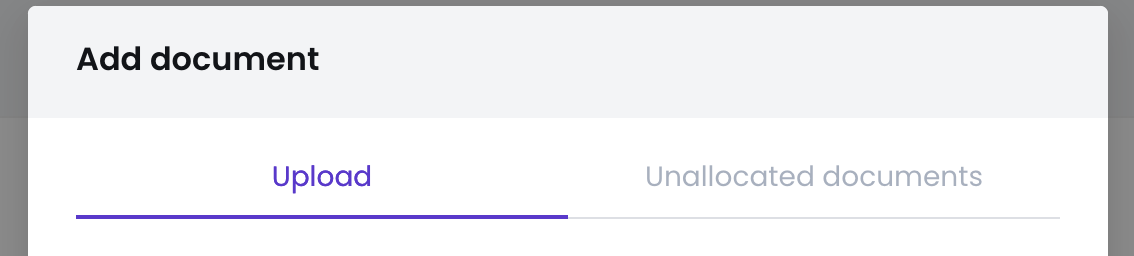
- Use the "Unallocated documents" option.
Once the document is uploaded, you can allocate it to the respective agenda items. Once it's allocated, a letter will be assigned to it. To re-allocate the document, you can move it to another item by drag and drop.
In case you didn't allocate the document in the step above (but used the "Cancel" button after the upload), you can find all uploaded but unallocated documents:
- Click the "Add document" button on one of the agenda items,
- In the modal, select the tab "Unallocated documents",
- Select the checkbox of the respective document,
- Click on the "Add" button.
Information
Once your meeting is ready, click on "Publish" to make the meeting available to the attendees. Remember to publish every time you make a change.
How to delete a document from an agenda item?
When you remove a document from an agenda item, two options are available with different outcomes:
- Remove from agenda item (single document): hover over the document in the list, click the icon with the three dots, and select "Delete". The document is moved to Unallocated documents and can be reassigned to another agenda item. Annotations are preserved.
- Permanently delete (bulk action): select one or more checkboxes on the left side of the document(s). A toolbar with bulk actions will appear at the top; click the bin icon. This permanently removes the document and all associated annotations, and requires confirmation.
Information
Permanently deleting a document cannot be undone. If you are unsure, use the single-document removal instead: the document will remain available in Unallocated documents along with all attendee annotations.
What are the limitations for the documents?
- Formats: these are the formats accepted in the agenda, however note that most of them can't be previewed, but only downloaded by other members: Image (jpg, jpeg, png), PDF, Doc, Docx, xls, xlsx, ppt, pptx.
- Size: the file size limit is 100 MB.
- Limit: the limit of characters for the document's title is 120.
- Only PDF and MS Office files can be added to the meeting agenda.
- We do not support password-protected Office files.