
In this article, you will learn :
- What are labels and
- How can you use them
What are labels in the library?
Labels can be used as folders, to organise your library.
You can search for a specific item by typing part of the label's or group name, which makes it easier to find the item you need, even in a long list.
How to use labels in the library?
Labels in the Library can be created by users with one of these permission sets:
- User + User Management
- User + User Management + Access to All Content
- User + Group Management, provided that label management is enabled for the room
For the third case, the room setting must be activated by the Customer Manager or Support Team. Label creation and assignment are available only in the web application, not in the mobile apps.
Create a new label
You can create new labels and maintain them via the right dots and then click on "Labels".
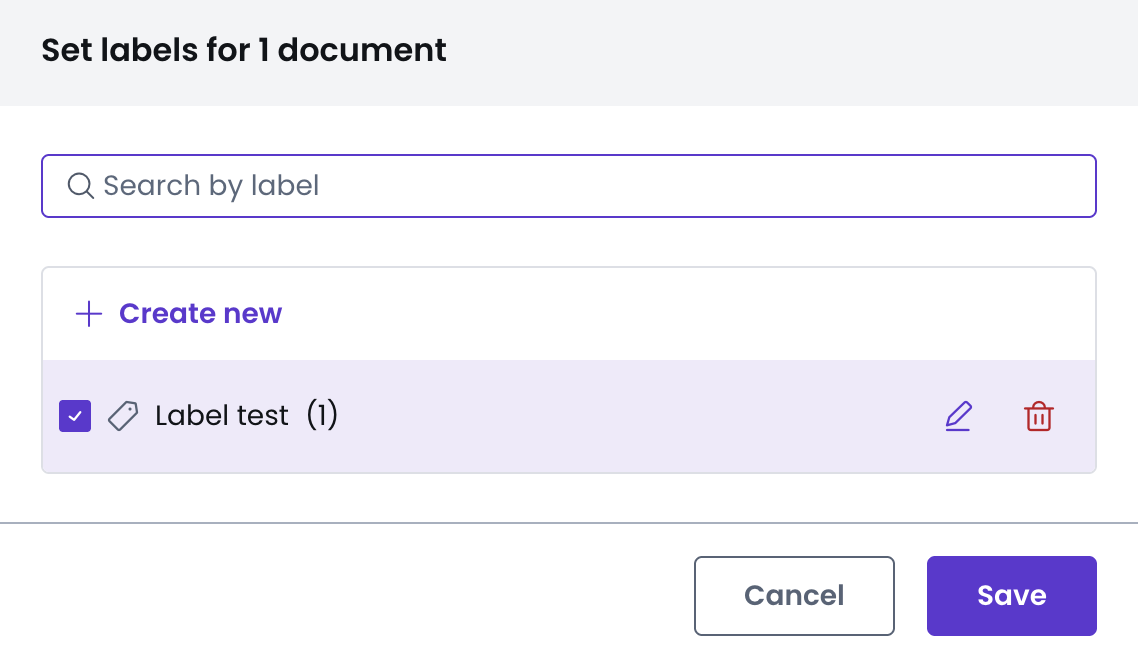
Once you created a new label, you can assign document(s) to it. You can do so by editing the details of the document.
Information
The labels that have no documents assigned to them will not show up in the attendee view, nor on the iPad or mobile applications. If you can't see a label on your iPad, make sure you assigned it to at least one document.
To rename a label:
The maintenance of the labels can be done in the filter using the 3 dots icon on the right of the label.
- Click on the dropdown list
- Find the label you want to edit
- Click on the three dots on the right and edit it
To delete a label:
- Click on the dropdown list
- Find the label you want to delete
- Click on the three dots on the right and delete it
Information
You can't have two labels with the same name, but a document may have more than one label at the same time.