
In this article you will learn :
- How to create folders in the Library
- How to organise documents using folders and sub-folders
- How to move documents and folders (including bulk actions)
- How permissions and visibility work with folders
- Best practices for searching the library with folders
What are folders and why are we introducing them?
Folders allow you to structure documents within the corporate Library.
You can create folders and sub-folders to organise content and improve navigation.
Information
The folder structure is visible only on the web version of Sherpany. On iOS, documents are displayed in a flat list in the Library. Folders are not displayed, even if documents are organised in folders on the web.
This is a feature that is not automatically active; it needs to be requested for activation.
How to create a folder in the library?
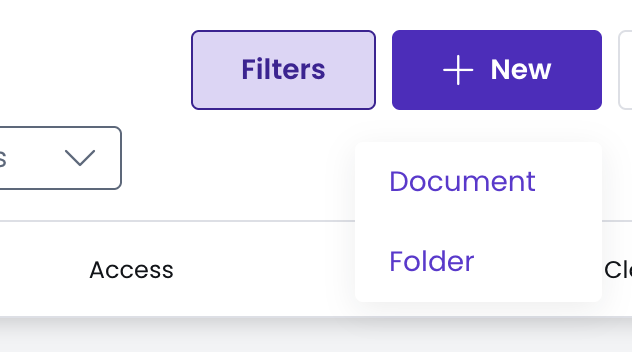
- Open the Library
- Click on + New.
- Select Folder.
- Enter a name and confirm.
- You can create sub-folders inside existing folders.
How to organise documents using folders and sub-folders?
Documents can be:
Uploaded directly inside a folder
Moved into a folder after upload
Organised across multiple levels of sub-folders
How to move a document and folder, including bulk actions?
You can move documents, folders, or a combination of both to another folder using the bulk action option. This is particularly useful when reorganising content, restructuring your Library, or grouping related materials more efficiently. To do this you can:
Select one or multiple documents and/or folders.
Click Move items to a folder.
Choose the destination folder.
For each document, you can:
- Rename
- Mark as favorite
- Mark as read/unread
- Label
- Manage access
- Change security level
- Download
- Move to a folder
- Delete
For each folder, you can:
- Rename
- Move
- Delete
Deletion rules:
Admins can delete folders (including non-empty folders).
Folder creators can delete a folder only if it is empty.
How permissions and visibility works with folders?
There are no permissions applied at folder level. All users with access to the Library can see all folders. However, document permissions still apply. This means that:
- Users may open the same folder
- They may see different documents inside, depending on their access rights
- Access to sensitive information continues to be managed at document level through:
- Security level
- Access management settings
Best practices for searching the library with folders
- Search: this f by name function searches:
- Document names
- Folder names
- Filters (All documents, My documents, Unread, Favorites, Recently uploaded) apply to the level you are currently viewing.
- Sorting: by default,
- Folders are displayed first (alphabetically)
- Documents follow (alphabetically)
- Sorting by date is also available.
- Drag and drop: you can drag and drop files from your computer into a folder. But you can not:
❌ Drag and drop items inside the Library.
❌ Upload an existing folder structure directly into Sherpany.
Information
Existing labels will remain intact. Folders do not replace or remove labels, and labels will continue to function as before.