
In this article you will learn :
- What the Topic Analyst feature is,
- What Topic Analyst shows,
- Where to find Topic Analyst,
- What the key benefits are,
- How Topic Analyst works,
- Tips for using Topic Analyst.
What is the Topic Analyst feature?
Topic Analyst helps you quickly understand the current status of a topic by bringing relevant information from past meetings directly into your agenda. Instead of searching through previous minutes, you get a clear summary of past discussions, decisions, and action items so you can prepare and decide with confidence.
Requirements to use Topic Analyst
- Topics must be created and managed in Topic Hub (all users can contribute)
- Plan and organise topics for upcoming meetings (usually done by meeting organisers). Agenda items must be linked to those topics
- During the meeting, discuss topics during meetings and capture minutes
- Review topic history and insights in Topic Hub over time
What does Topic Analyst show?
Topic Analyst surfaces the most relevant information from past minutes linked to the same topic as your agenda item.
- Relevant past minutes related to the topic
- Key decisions and discussion outcomes
- Action items and their current status (open, completed, pending)
This gives you a quick snapshot of where things stand today.
Where can you find Topic Analyst?
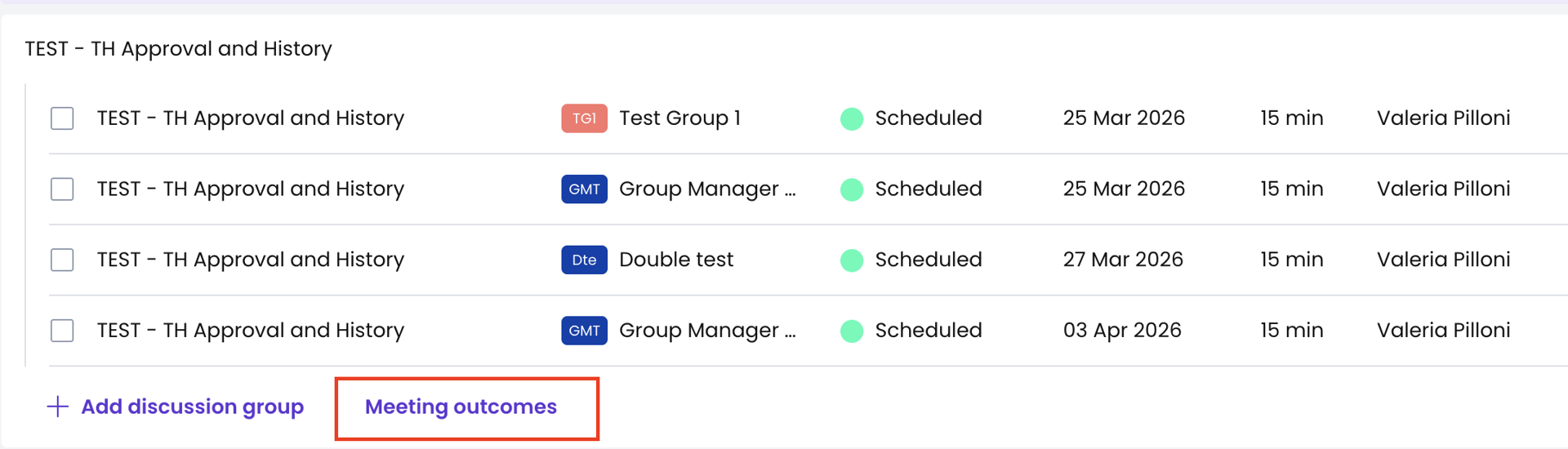
Topic Analyst is available in Topic Hub and in agenda items linked to a topic.
From Topic Hub:
- Go to Topic Hub
- Find the related topic
- Click "See topic discussion outcomes"
From an agenda item:
- Open the agenda item
- Go to the Topic Hub section
- Click "See topic discussion outcomes"
You will see a summary of the topic history and its evolution over time.
Each insight includes:
- The meeting date
- What was discussed or decided
- Related action items and their status
What are the key benefits of Topic Analyst?
- Avoid repeating past discussions. Because Topic Analyst brings forward relevant historical context, you can avoid re-opening topics that were already discussed without real progress.
- Focus on what matters now. Topic Analyst focuses on current relevance, giving you the context you need to make decisions without reviewing full meeting histories.
- See action status at a glance. Action items and their current status are highlighted so you always know:
- What’s already been done
- What’s still open
- What may need additional follow-up
- Spend less time preparing. Topic Analyst brings the most relevant information to you, saving time during meeting preparation.
How does Topic Analyst work?
Topic Analyst uses the topics linked to your agenda items to find relevant past minutes.
- Only discussions linked to the same topic are shown
- Unrelated content is excluded
- You always get focused and actionable insights
Important
Topic Analyst only uses discussions and decisions recorded in Sherpany minutes. External content or unlinked discussions are not included.
Please also note that the automated summaries provided by Topic Analyst require the AI bundle to be enabled.
Tips for using Topic Analyst
- Connect agenda items to topics early. The earlier you start linking agenda items to topics, the more useful insights will become over time. If topics are not used or not connected, no insights will be displayed.
- Use Topic Hub consistently.
- Every user can create topics
- Meeting organisers should plan topics for future meetings
- Topics grow over time as meetings and minutes are added
- Use insights as decision context: Bring past decisions and action outcomes into your discussions.
- Check action statuses before the meeting: Helps you prioritise conversations and next steps.
Learn more about Topic Hub in this article: What is Topic Hub?