
In this article, you will learn :
- What is the Minutes Copilot feature,
- Why you should use it,
- How it works,
- How to upload transcripts,
- How to upload an audio file when no transcript is available,
- How to use notes when no transcript is available,
- Who can see the transcripts,
- About privacy and data.
What is the Minutes Copilot feature?
Minutes Copilot uses meeting transcripts generated by Microsoft Teams to help you create automated minutes. This includes:
- Summaries of discussions
- Decisions made
- Tasks assigned
These can be generated:
- Per agenda item, individually or
- For the entire meeting, with results split by agenda item
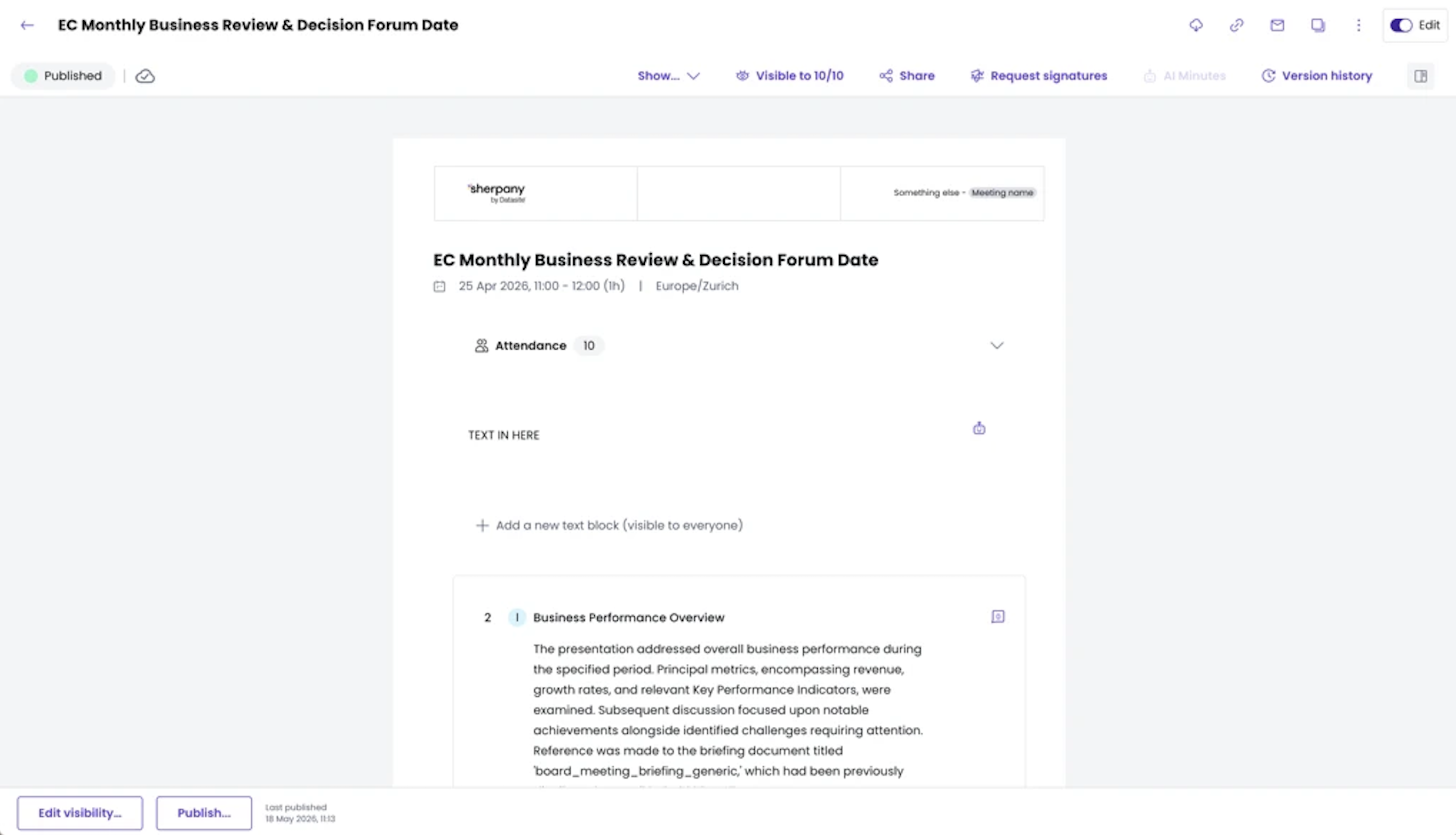
The AI-generated content serves as a first draft, helping you save time and reduce errors when writing minutes.
Why use this feature?
Writing minutes is one of the most time-consuming and error-prone aspects of meetings.
Minutes Copilot helps you to:
- Access the full transcript next to the minutes editor
- Avoid missing important information
- Accelerate the process of writing accurate and complete minutes
- Automatically extract summaries, tasks, and decisions per agenda item
How does it work?
Information
Currently, we only support the automated minutes, supported by the transcription generated in Microsoft Teams through our integration.
During the meeting:
- Start transcription in Teams: More > Record and transcribe > Start transcription
- Select your language
- Stop the transcription at the end of the meeting
In Sherpany:
- Go to the Minutes tab of your meeting
- Click the "Transcripts" button (top right) to view, upload or manage a transcript or an audio file
Use AI to generate content:
- Click "AI Minutes" under an agenda item to create a summary
- Click "AI Tasks and Decisions" to extract tasks and decisions
- Click the top-right "AI Minutes" to generate summaries, tasks, and decisions for the entire meeting, split per agenda item
How can transcripts be uploaded into the meeting?
- Go to the Minutes tab of your meeting
- Click the "Transcripts" button (top right)
- Click on "Upload Transcript"
- You can upload a vtt file or copy/paste the text
- You can upload multiple transcriptions, sort them, and delete them once minutes are uploaded
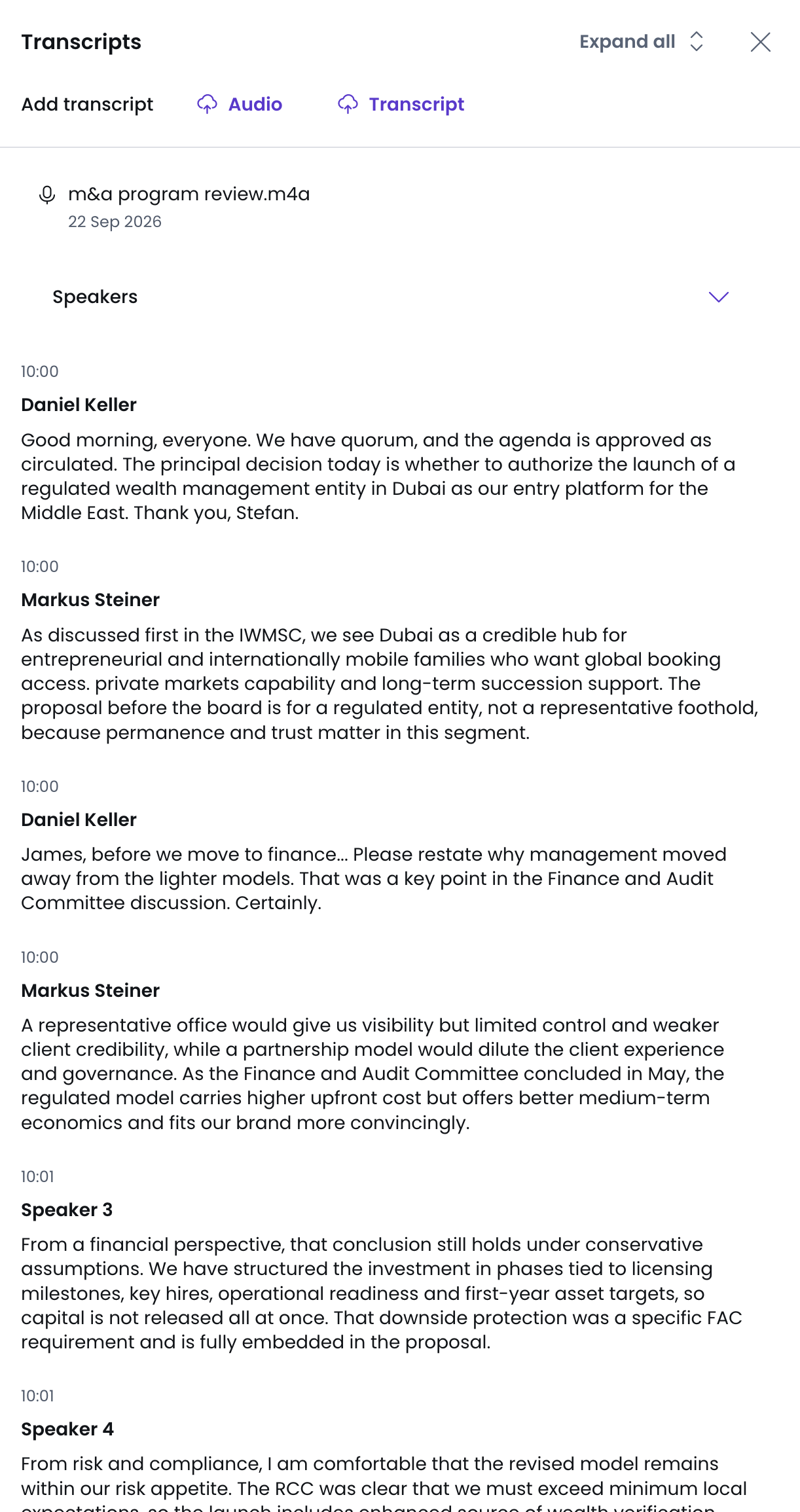
This allows you to:
- Use MS Teams without the need to provide consent for Sherpany to access their MS365 instance.
- Use other video calling tools like Zoom, WebEx, Google Meet, and others.
- Support in-person meetings if a recording and transcribing system is already in place.
How can I upload an audio file when no transcript is available?
If no transcript is available but the meeting was recorded, you can upload an audio file directly into Sherpany. The file will be processed and used as input for AI generation.
- Go to the Minutes tab of your meeting
- Click the "Transcripts" button (top right)
- Click on "Upload Audio"
- Select your audio file and confirm the upload
Information
- Supported formats: MP3, M4A, OGG.
- Maximum file size: 200 MB.
- The file must contain audio only, video files such as MP4 are not supported.
- If a meeting was recorded in separate parts, you can upload multiple audio files to the same meeting.
- For best results, ensure all participants can be heard clearly and the recording includes the full meeting or the part you want Sherpany to process.
How can I use notes when no transcript is available?
For meetings without a recording or transcript (for example, confidential or in-person meetings), Minutes Copilot User Notes lets you write draft notes per agenda item directly inside the minutes view. These notes become the input for AI generation, enabling the full Copilot summarisation flow even without a transcript.
- Write bullet points, short summaries, or key remarks per agenda item before triggering AI generation
- When generating AI content, you are asked what to consider as input and how you want the output to be applied (append or overwrite)
- If needed, you can roll back to a previous version of the minutes via the version history
Information
- Any user with edit rights in the meeting can write notes per agenda item, trigger AI minutes, and restore a previous version. Guest users and read-only participants cannot add or edit notes.
- This feature is available on Web and requires Minutes Copilot to be enabled on your account.
- Notes are not private: they use the existing minutes field and are visible to all users with access to the minutes view.
- Notes are different from Comments: they are part of the minutes draft, not a discussion thread.
- Only the latest version of the minutes is used as input for AI generation. Previous versions are not considered.
Who can see the transcripts?
Only meeting editors can view transcripts in the Minutes tab. It means that:
- Confidential information is protected
- Guest users and non-editors cannot access transcript data
Privacy and data
- The AI uses a local large language model hosted entirely within Sherpany's infrastructure. No data is sent or exposed outside our secure environment, all access and retention policies can be managed on Microsoft side (more information here).
- Please note that Transcripts generated via Microsoft Teams are stored within Microsoft (Teams / OneDrive / SharePoint) according to your organisation's Microsoft 365 settings. In this case, their retention and access are managed by your Microsoft administrators.
Security
To learn more about the security and ethical use of AI features in Sherpany, please refer to our AI Security and Ethical Use Policy.
Information
- This feature requires the use of the Microsoft Teams Transcripts feature. If the feature is not active in your Microsoft account, you can check this article on how to make it available.
- Sherpany will need organisation consent to access the transcripts inside Microsoft Teams. To make this possible, you can check this article.